
In CBDR, a patient’s product inventory is entered and managed by the HTC by default. This document shows how a clinic can allow an individual patient to manage their own inventory instead.
It is one or the other. Either the patient or the HTC, never both at the same time.
Find the setting
1) Open the patient record and select the MyCBDR tab.
2) Click the Received Products sub-tab. The Enable and Disable buttons appear only on this sub-tab.
3) Look at the toolbar above the sub-tabs. The button shown there tells you who has control.

Enable is showing, so the HTC enters this patient’s inventory.

Disable is showing, so the patient enters their own inventory. Add Received Product is gone.
Give control to the patient
Click Enable MyCBDR Product Receipting for this Patient.
The button flips to Disable and Add Received Product disappears from your toolbar.
Return control to the HTC
Click Disable MyCBDR Product Receipting for this Patient.
The button flips to Enable and Add Received Product returns to your toolbar.
Either change takes effect immediately, and nothing already recorded is altered. Full detail overleaf.
Reference
Who can do this
Clinician, Data Manager and HTC Director. Users in other roles will not see the Enable or Disable buttons.
Rules
- The MyCBDR tab appears only for patients enrolled in MyCBDR. If you cannot see the tab, this procedure does not apply to that patient.
- One party at a time. Either the patient or the HTC, never both.
- Default for every patient: the HTC enters and manages inventory. Patient receipting is off until someone turns it on.
- Switching changes no data. Received product records and Stock On Hand stay exactly as they are, in both directions.
- The change is real time. If the patient’s app has not picked it up, ask them to log out and log back in.
What the patient sees
These are screens on the patient’s MyCBDR app. You will not see them in CBDR. They are here so you can tell a patient what to expect.
While the HTC has control
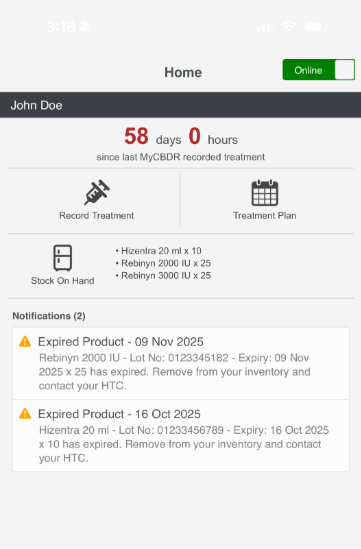
Record Treatment and Treatment Plan only. No Record Product tile.
While the patient has control
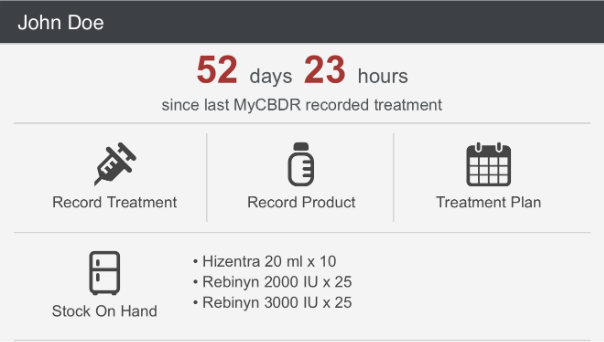
Record Product is added, and a Stock On Hand list of the patient’s own products appears below.
Troubleshooting
What you see | What to do |
Neither Enable nor Disable appears in the toolbar. | Confirm you are on the Received Products sub-tab. The buttons do not appear on Treatments, Bleeds, Surgeries, Stock On Hand, Memos or Discards. If you are on the right sub-tab, check your role. |
You enabled receipting but the patient still cannot see Record Product. | Ask the patient to log out of MyCBDR and log back in, and to check the Online toggle on their home screen. |
You need to add a received product but Add Received Product is missing. | The patient currently has control. Disable patient receipting, add the product, then re-enable if the patient is to keep control. |